How Do I Use Web Services?

Web Services Help

Web map services: Web Map Service is one of the OGC (Open Geospatial Consortium, Inc) standards. WMS is a web-based tool that produces and serves digital maps. In the past, analyzing and creating maps was a slow and labor-intensive process. Now with Global Positioning Systems and other digital methods of gathering geographical data, digital mapping has become an important component in several fields. The WMS specification is a web-based protocol that allows communication of map-style data between a server and a client.

WMS Implementation Specification provides three operations (GetCapabilities, GetMap, and GetFeatureInfo) in support of the creation and display of registered and superimposed map-like views of information that come simultaneously from multiple remote and heterogeneous sources.

Users of ESRI products such as ArcExplorer or ArcMap or ArcCatalog can view base layers via the Internet without having to download the mapping files. The general routine to use ArcGIS ArcCatalog to set up a WMS (and WFS) serve. The steps are the followings (using www.mapwv.gov as example).

  1. Open ArcCatalog
  2. Click on GIS Servers in the Catalog tree
  3. If you just want the image services, you will use Add ArcIMS Server..
    1. Double Click on Add ArcIMS Server
    2. In the URL of server text box, type in: http://www.mapwv.gov
    3. Keep all defaults
    4. Click OK button at bottom of window
    5. You will see that www.mapwv.gov with icon ESRI Image Services Server Iconshown in the Catalog tree under GIS Servers
    6. The image services are in icon ESRI WMS Icon.
  4. If you want WMS services, you will use Add WMS Server
    1. Double Click on Add WMS Server
    2. In the URL of server text box, type in: http://www.mapwv.gov/wmsconnector/com.esri.wms.Esrimap?ServiceName=servicename.
    3. Keep all defaults
    4. Click OK button at bottom of window
    5. You will see that Web Map Services servicename on www.mapwv.gov with icon ESRI WMS Server Icwith iconon shown in the Catalog tree under GIS Servers
    6. WMS services are in icon ESRI WMS Services Icon.

Add WMS image service into ArcMapIn ArcMap, the service can be added using the menu sequence “Add Data>GIS Servers”, double click on www.mapwv.gov.  A list of services will be available under www.mapwv.gov tree. Select one service to view the data. In general, WMS services are with icon ESRI WMS Services Icon.

Add WMS image service into ArcMap For example, selecting the Map Service name “WV_SAMB_Orthophotos_2003_UTM83” from the www.mapwv.gov Map Server will add the statewide, 2-foot color aerial photos flown in spring 2003 into ArcMap. The following is the screen shot of WV_Elevation_30m_UTM83 in ArcMap.

WMS image in ArcMap The WMS image service can be viewed in ArcCatalog as well. After you add a WMS server, you can view the service image by using preview tab in Arccatalog. See the right image for reference. The image service is from WV DEP.

For developers to access WMS services with Internet application, the LAYER ID will be used. The syntax of calling a WMS service is like this:

http://www.mapwv.gov/wmsconnector/com.esri.wms.Esrimap?SERVICE=WMS
&VERSION=1.1.1&REQUEST=GetMap&LAYERS=LayerID&STYLES=&SRS=EPSG:26917&BBOX=BBOX
&WIDTH=1024&HEIGHT=768&FORMAT=image/jpeg&SERVICENAME=ServiceName

Key Notes:
LayerID: the layer ID in the Layers used in WMS, such as WV_SAMB_orthophotos_2003_utm83_2ft
BBOX: minx,miny,maxx,maxy. For WV, it is 319398,4105801,837087,4514090 in UTM.
ServiceName: the name of the service listed in Service Name column, such as WV_SAMB_Orthophotos_2003_UTM83.

Detailed help about ESRI Web Map Service can be obtained from here.

What File Formats Are Supported by the Tech Center?

FILE FORMAT


Definition:

Notes on Use:
Due to the large amount of data involved, all files are archived and compressed into a single zip file for easy downloading. Single-precision coverages can store up to seven significant digits for each coordinate, double-precision coverages up to fifteen significant digits.

File TypeExtensionName
Vector
*.shp
*.e00
*.dlg
ArcView Shapefiles (*.shp, *.shx, *.dbf)
Arc/Info Export files
USGS DLG Optional
Image
.tif/.tfw
*.tif
*.img
INFO folder
TIFF (Tag Image File Format / World File)
GeoTIFF (TIFF with Geo header)
IMAGINE (ERDAS IMAGINE)
ArcInfo GRID (ESRI Grid File)
Compression
*.sid

*.zip
MrSID (Multiresolution Seamless Image Database)
Zip files (.zip)

What Coordinate Systems Are Used by the Tech Center?

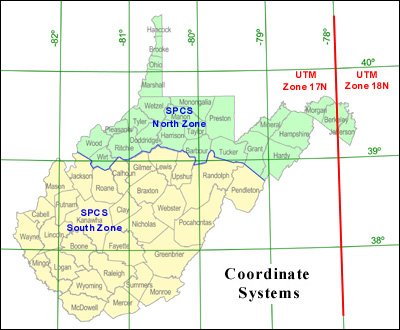
The Geodetic Control / Surveying Task Force recommended to the WV GIS Steering Committee that all agencies mapping geographic data within West Virginia utilize one of the following three coordinate systems: Geographic Coordinate System, Universal Transverse Mercator, or State Plane Coordinate System, all referenced to the North American Datum of 1983. Only these coordinate systems and datum will serve as the official data exchange standard for GIS data sets that make up the West Virginia Spatial Data Infrastructure. In August 2002, the new standard was approved by the WV GIS Steering Committee.


West Virginia Coordinate Systems

Typically three coordinate systems are utilized in West Virginia:
  1. Geographic (Latitude/Longitude) for general referencing and data distribution
  2. Universal Transverse Mercator (UTM) for statewide GIS data sets
  3. State Plane Coordinate System (SPCS) for countywide data sets
File name extensions reflect the type of coordinate system.

Coordinate System Projection WV Zones Map Units File Extensions
Geographic (Latitude/Longitude) None None Decimal Degrees LL83 (NAD 83)
LL27 (NAD27)
Universal Transverse
Mercator (UTM)
Universal Transverse
Mercator (UTM)
17N and 18N Meters UTM83 (NAD83)
UTM27 (NAD27)
State Plane
Coordinate System (SPCS)
Lambert
Conformal Conic
North and South Feet SPN83 (North Zone, NAD83)
SPS27 (South Zone, NAD27)